Sunday, March 8, 2015

Reflections of EdCampAccessNJ 2105

  No comments    
Yesterday was the big day, after a couple of months of planning with my co-host Mike Marotta, EdcampAccessNJ held at the College of St. Elizabeth was off and running. It is always such an exciting day for me and the participants as we share our skills and talents.
Mike and I have had this philosophy since we spoke about running an Unconference "build it and the will come" and they did. Yesterday we had over 150 dedicated educators  spend their entire Saturday with us to learn about new ways they can bring assistive technology into their classroom. Using Twitter, Facebook and word of mouth we had teachers, directors of technology, speech therapists, occupational therapists, special education teachers, directors of special education, college professors, assistive technology specialist, and parents attend and contribute to the days event. As Mike and I know putting the agenda together the morning of the event is a "leap of faith," but some how everyone steps up to the plate and within a couple of minutes the schedule comes together. We had sessions on Chrome Extensions, iPad, Using Robots, Professional Development, Using Word Prediction, Using OfficeMix,and many more. 

We started the day in the Dolan Auditorium to go over the logistics for the day and finished off the session by interviewing to students who have been using assistive technology at school and at home. It is always so exciting and refreshing to here how students are taking advantage of the various technologies and what a difference it has made in their lives. Leaving the auditorium all of the participants were off to their first session which worked like clock work. The day was running rather smoothly, but about half through the second morning session we lost power and the rooms went dark. Like troopers that they are the learning continued and despite the loss of WiFi and power the speakers all were able to finish their sessions. A quick huddle ensued and we learned that one of the other buildings on campus had power so we were able to have lunch in St. Joseph's Hall and continue the sessions there. The Academic Computing Department, Events Planning & Media Services support staff were there and within minutes we were up and running in a new venue. This is probably the first Unconference with a power outage- something to talk about when we get together with our colleagues. In any case everyone stayed calm and conference went on as planned.

For those of you have not participated in an Unconference there is a special karma that ensues that makes this a very special type of event. Everyone attending is there to learn and participate and to be fully engaged. The results of the process and the fact that participants self select to be there makes for an incredible learning event and synergy. Topping off the day we had a Smackdown which is always informative and fun. We ended the day with give-a ways which were provided by so many companies that supported the event. Once again it was a pleasure and honor to host this event and we are looking to build ing a bigger and better EdCampAccessNJ 2016 event which is scheduled for March 5, 2016 at the College of St. Elizabeth - hope to see you there!


 but

Sunday, February 15, 2015

Chromebooks in the Classroom: Changing the Landscape of Education

  No comments    
Having just returned from the Assistive Technology Industry Association (ATIA) 2015 Conference I had a chance to connect with friends and colleagues and survey the landscape to pick up on trends and practices in the field of assistive technology. Without a doubt we are at the beginning of another trend in our field as more and more schools move to Chromebooks. Chromebooks in many ways represent a real paradigm shift for educators and students since all of the apps follow the students account as they are delivered through the Chrome browser. This is a huge shift allowing educators to customize the experience of every student who is using a Chromebook. In many ways this is what educators have longed for, for years, the ability to seamlessly give students the tools they need that automatically load into their browser any time they are signed into their Chrome browser. As I walked the hallways of the ATIA Conference and peered into the rooms that were brimming with educators, there was a good chance the topic revolved around Chromebooks.  

Chromebooks look to the naked eye just like laptops but underneath the hood it is running the Chrome OS which when launched gives you access to the Chrome browser. While the Chrome OS has many built-in accessibility tools there is a wide range of extensions and applications that can be installed to give students access to text to speech, word prediction, mind mapping, task management, and study skills. Some of the more full featured assistive technology tools have been developed by TextHelp, Don Johnston and Quillsoft Ltd.

TextHelp has developed Read&Write for Google which provides students with word prediction, text to speech, and speech recognition along with a host of study skill tools. Once
logged in, students will have access to the Read&Write for Google Toolbar when they are in Google Docs and when they are on the web. The text to speech functions is first rate and is available to students when accessing the web. Read&Write for Google Toolbar is a solid app that provides students with a comprehensive set of tools for reading and writing. Teachers can access the premium version Read&Write for Google free by filling out this form: http://rw.texthelp.com/drive/Home/RegisterTeacher


Don Johnston just released Co:Writer Universal which provides students with top of the line word prediction as we have been accustomed to for the last 25 years. If you are working in a district that is using a variety of different computer platforms then Co:Writer Universal is a great app, since you can for one price run Co:Writer Universal on iPads, Mac, and PC in
addition to Chromebooks.  The word prediction on Co:Writer Universal is second to none and provides students with text to speech support right within the Chrome browser. As you would expect students have access to Topic Dictionaries and the full set of feature that they have come to expect from Co:Writer. Don Johnston was also showing Snap & Read Universal another Chrome extension which adds text to speech for reading the web that is able to perform optical character recognition on web pages that display embedded text in graphics. Snap & Read Universal will also let students level the text to make it more understandable when they are reading text on the web.


Quillsoft Ltd was showing WordQ for the Chromebook that can provide students with excellent word prediction and text to speech supports. Students can easily select the words
using the number keys and when they hover over a word in the prediction bar WordQ will read the word. Combining WordQ with their companion app ThoughtQ can help students explore topic lists of words when writing research papers. All documents can be saved on the students Google drive for easy storage and retrieval.


As more and more developers move their apps to Chrome platform we will begin to see the need for teachers to be better trained in helping them to understand this shift and how to
maximize the power of this ecosystem. In this vein, Mike Marotta and I have developed a highly readable six page laminated resource guide that highlights how to use Chromebooks in the classroom. It covers accessibility, installing apps and extensions as well as ways to really get the most out your Chromebook investment. To purchase Chromebooks in the Classroom click here


PS; Don’t forget to sign up for  EDCampAccessNJ.org on March 7, 2015 at the College of St. Elizabeth for a great day of learning and networking!


Sunday, January 4, 2015

OfficeMix-Off to a Great Start in 2015

I trust you had some time to rest and recreate during the holidays and that you are now refreshed and rearing to go. As I start to plan for the semester ahead I am generally excited with all the possibilities and how I can engage my students in their learning. For the past couple of years I have taught many of my courses as a hybrid-meeting on campus for half the semester and teaching the rest online, which has worked out really well. Last semester, I experimented using OfficeMix an new plug-in for PowerPoint that makes the creation of digital assets extremely easy. For teachers who have wanted to flip the classroom, but are still looking for a
tool to help in the creation of material I would recommend that you install the OfficeMix plug-in which is available on the Windows platform for PowerPoint 2013 or Office 365. 

OfficeMix adds the ability to add digital ink (great if you are using a Surface Pro 2 or 3) , videos (Khan Academy, You Tube), simulations (PhET Simulations), quizzes, screencasts, screen captures-complete with user analytics. OfficeMix works great on a Surface Pro 3 because you can take advantage of the webcam and record audio as well as video and include it in your Mix. Likewise, having access to the digital ink on the Surface Pro 3 lends itself to marking up slides or for white boarding directly on a slide.  

One of the more challenging aspects of flipping the classroom for teachers is figuring out how to publish the material and where to publish it to. OfficeMix remedies this problem by hosting your Mixes in the Cloud-at no cost. With a click on the Upload button your Mix heads to the Cloud, making your last mile to publishing effortless. Once you have published your Mix you can get the link or embed code and set the permissions making it easy to restrict who has access to your material. If your Mix includes a quiz you can view your students responses in your Mix Dashboard on the web or download the results to an Excel formatted file.

Working with Mix is easy and students who are using a Windows or Macintosh computer can access the Mix with all of the interactivity. So for example if you insert a science simulation students will be able to interact with it when they open the Mix. If you will be viewing your Mix's on a tablet you can always export or publish them as a video-but your students will lose out on the interactivity. Teachers will find using OfficeMix to be straight forward and easy to use with lots of possibilities. 

The OfficeMix Team is constantly updating the plug-in and bringing more functionality with every update. Looking ahead I would really like to see that OfficeMix can publish in HTML 5 so that we don't lose out on any of the interactivity when view a Mix on a tablet. Likewise, I would like to see the OfficeMix Team add a way to insert Close Captioning when publishing a Mix. Despite these minor things, give OfficeMix a try- I know you will find it a very formidable authoring tool in your content creation! Happy Mixing!

Here is an example of an OfficeMix I used with my students:


If you will attending the NJECC Conference next week I will be doing a session on using the Surface Pro 3 & OfficeMix in the flipped classroom. Likewise, I will be doing a session at the ATIA Conference in Orlando later this month on using the Surface Pro 3 with OfficeMix- so join me if you can and please drop by and say hello!

Saturday, November 29, 2014

ActionTec's ScreenBeam Mini 2- Good Things Come in Small Packages

I have been a big fan of ActionTec's ScreenBeam Pro Education Edition and have used it successfully in my classroom with my Surface Pro 3 and Dell Venue 8 tablets. Having the ability to walk around my classroom and share my screen without physically being connected to the projector is a real pleasure. Setting up the ScreenBeam Pro is extremely simple and does not require one to connect the device to the existing WiFi network which is a real advantage of the Miracast technology. 

When I heard that Actiontec was going to release a new Miracast receiver, I knew I had to get my hands on it and give it a test run. So first, I would like to thank Actiontec
for sending me a ScreenBeam Mini 2 to evaluate. The ScreenBeam Mini 2 is small and looks to be about the size of a USB thumb drive which gets plugged into the HDMI port on your projector or HDTV. If your HDTV has a USB port you can power the ScreenBeam Mini 2 from the port otherwise you can power the receiver with the supplied USB cable and plug. Once plugged in you will see a little LED, light up to tell you the ScreenBeam Mini 2 is powered up. Now simply turn on your HDTV and make sure that you have set the input to HDMI and you should see the Actiontec Screen alert you that it is ready to connect. Now simply swipe in from the right side of your Windows 8.1 tablet and select Devices and connect to the ScreenBeam Mini 2. If you don't see the ScreenBeam Mini 2 receiver listed simply click on Add device and your tablet will discover the ScreenBeam Mini 2. Within seconds you will see the magic happen and your device will be displayed on your television screen. I found that the ScreenBeam Mini 2 connected very quickly to my tablets and the audio quality was superb. ScreenBeam Mini 2 supports 1080 p 30 fps and 2 channel stereo. 

For home or school use the ScreenBeam Mini 2 is an ideal receiver when I want to share the contents of my tablets. If you are interested in securing your wireless receiver then you will want to take a look at the ScreenBeam Pro Education Edition. I have tested the ScreenBeam Mini 2 with the Surface Pro 3, Dell Venue 8, and the Nexus 7 ( running Android 4.4)  and all have worked well with the receiver. As they say, good things do come in small packages and this is certainly true with regard to ActionTec's ScreenBeam Mini 2. The ScreenBeam Mini 2 is also ideal for the business person who travels and is doing presentations or who wants to watch movies in their hotel room. Check out the ScreenBeam Mini 2 if you are looking for a small Miracast receiver that carries a big punch!

Friday, November 21, 2014

Cleanstylus for the Surface Pro 3- the Perfect Add-on

Cleanstylus for Surface Pro 3
As much as I enjoy using my Surface Pro 3, especially for the digital inking-it is just a matter of time, before I know I will eventually lose my stylus. So when I came across the Cleanstylus for the Surface Pro 3 from Cleanint I knew I had to take it out for a test run. I had a chance to speak with Tuan from Cleanint and he was kind enough to send me out one to review. If you are looking for an elegant and effective way to store your stylus then take a look at the Cleanstylus for the Surface Pro 3. The Cleanstylus for the Surface Pro 3  comes in matching keyboard cover colors and uses a a reusable adhesive technology that lets you re-position the stylus/pen holder as you see fit. I decided to adhere the Cleanstylus for the Surface Pro 3 to the top right corner of my Surface Pro 3 and installing it was a cinch. The holder really grasps the stylus and you can either snap it in or slide it into the holder -which ever way you prefer. The Cleanstylus for the Surface Pro 3 retails for $19.95 and is a great solution for securing your stylus and giving you the peace of mind knowing where it is when you need to use it. If you are interested in purchasing the Cleanstylus for the Surface Pro 3 please contact me via email

Saturday, September 27, 2014

Adobe Learning Summit 2014

In a couple of weeks I will be flying out to Las Vegas to present at the Adobe Learning Summit 2014- to present with my colleague Linda Mahnken, on the
topic of Creating Accessible eLearning with Adobe eLearning Tools. Linda and I will focus on how you can use Adobe Presenter 10 and Adobe Captivate 8 to create elearning material that is accessible for individual with hearing, visual and learning disabilities.


During the session you'll learn:
  • Accessibility features in Captivate and Presenter
  • Which content types are and are not accessible    
  • Best practices for accessible online content
If you have the opportunity this is a great conference that is co-located with DevLearn. I have been using Adobe Presenter for many years and with each version it gets better and better. For those of you who are not familiar with Adobe Presenter, Presenter is a PowerPoint plug-in that will give you a whole host of new features which are ideal for anyone who is creating material for the web. With more of my students accessing the web from mobile devices it is really exciting that I can now publish my courses in HTML 5, which I know will work on iPads and Android based tablets. One of the features which has always set Adobe Presenter apart from other PowerPoint plug-ins is the speed in which I can develop materials for the courses that I teach. In addition to being able to create interactive material- the ability to assess my students knowledge of the material is equally as important. Adobe Presenter 10 continues to excel in the ability to create quizzes which can be linked to an analytic dashboard so that as an instructor, I can quickly see who needs assistance and intervention. Adobe Presenter 10 also provides students with the opportunity to discuss ideas and leave comments when the material is presented which is truly a unique feature. 

For teachers who are considering flipping the classroom, Adobe Presenter 10 comes with Adobe Presenter Video Express which makes creating instructional videos from your computer a cinch. Adobe has really thought out this
application and within minutes you will be creating your first highly polished videos that you can publish to YouTube, Vimeo, & Adobe Connect.
Adobe Presenter Video Express includes the ability to add Closed Captioning-taking advantage of speech recognition to get the captioning done quickly. If you have been struggling to find an easy to use tool for creating instructional videos on you Mac or PC then take a look at 
Adobe Presenter Video Express. There is a lot to like in the new Adobe Presenter 10-but for me it has always been that balance of features with rapid development. Hope to see you at the Adobe Learning Summit 2014 Conference.

Sunday, September 7, 2014

Science Under the Lens: ProScope Micro Mobile from Vernier

Getting students engaged in the learning process is paramount these days and what better way to do this than with computer technology. As our American education is going through a transformation there is an understanding that the students in our classrooms today need to become well versed in science, technology, engineering, and mathematics. Looking at the Next Generation Science Standards it is clear that this document is a real paradigm shift in how we deliver instruction in the classroom in these areas. It is clear that the shift
ProScope Micro Mobile
is a move away from rote memory to a performance based model of students demonstrating their knowledge by doing and showing their conceptual understanding of the material. It is in this context that Vernier Software and Technology has been providing educators and students with sensors and probes to provide students with the opportunity to perform scientific inquiry. It is clear from the research, that giving students hands-on experience with the tools that scientists use is one way for students to develop a deeper understanding of scientific processes and concepts.


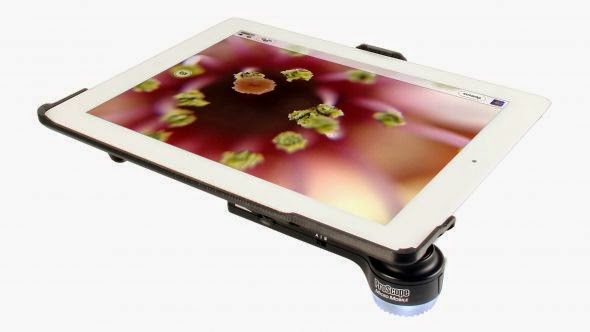
With many schools adapting the iPad for instruction it is exciting to see how many companies have begun developing accessories that can transpose the device into a tool that students can use for scientific inquiry. It is in this light that Vernier Software and Technology just released the ProScope Micro Mobile which turns the IOS devices and Samsung Galaxy S4 into a digital microscope with 20x-80x magnification utilizing an Edmund high quality glass optic lens. The ProScope Micro Mobile has a built-in lithium battery which keeps its charge for up to 5 hours and has a fast 2 hour charging cycle via a USB cable.

The out of box experience was very positive and the Quick Start Guide got me up and running quickly, once I had fully charged the ProScope Micro Mobile.  When you purchase the ProScope Micro Mobile you will need to decide which device you will be using it so that you get buy the proper housing for the lens. The lens can be used with many devices as long as you buy the appropriate housing for your device. Having said this, I fit the lens assembly into the housing and snapped it onto my iPad Air. The lens fits over the camera on the iPad and has a ring of LED's which can be adjusted for the best lighting effect and to reduce surface reflection. At this point you can open your Camera app on your iPad, turn on your ProScope Micro Mobile, adjust the LED's, and adjust the magnification to see what is under your microscope. I placed a strand of my hair under the ProScope Micro Mobile and was amazed at what I was able to see. To capture the strand 
Captured with IPEVO Whiteboard aa on iPad Air
of hair under the 
ProScope Micro Mobile you simply click on the Camera button to capture the image. The ProScope Micro Mobile allows you to use whichever camera app you elect, which gives you a wide range of options. 

Teachers in the classroom may want to consider using the IPEVO WhiteBoard or the Belkin Stage app with the ProScope Micro Mobile to give students more options for capturing and annotating what they capture under the microscope. Using the included built-in hands free stand, teachers have the capability of capturing and saving video as well that is under the microscope that they can share with students. For
Leaf Under Microsocope
$149 dollars the 
ProScope Micro Mobile is a high quality iPad accessory that can bring science to life for students in the classroom. I for one know that students will get really excited about using this tool in the classroom or in the field to bring science to life. If you are looking for ways to bring excitement back into science and engaging your students in the process then look no further and consider requisitioning the ProScope Micro Mobile.