Showing posts with label ios. Show all posts

Thursday, December 17, 2015

Speech Recognition - Coming of Age!

Ever since I've been involved in the field of assistive technology there's always been the hope that speech recognition could assist students with the writing process. While speech recognition has been effective for some of the students we work with, it hasn't always worked out for the majority of the students that we work with. In the last six months there's been some new developments that make speech recognition a reality for many students. For many of us that are using smart phones we find ourselves using speech recognition more and more on daily basis for text messaging and for writing emails. Now students can take advantage of speech recognition on mobile devices such as iPhone's, iPad, Android phones, Windows tablets as well with as within Google Docs. With the advent of machine learning the speech recognition engines keep getting better and better and do not require initial training. This has made it a very easy entry for students to trial speech recognition. Prior to this time, students would have to spend a considerable amount of time training and creating a profile. With the advent of mobile devices this is a thing of the past. Over the last six months I've been using a number of different speech workflows that I wanted to share with you.

Google recently added Voice Typing to Google Docs which really has taken speech recognition to the next level. By simply plugging in a microphone to a desktop computer students can start to use speech recognition immediately. I have found that the speech recognition that's built into Google Docs to be very accurate and allows students to quickly get their ideas down. Voice Typing opens up all kinds of opportunities for students to quickly get their ideas down on the page. With the advent of this API other companies have been using and integrating the Voice Typing into their apps. You will now find Voice Typing integrated into Co:Writer Universal, WordQ, as well as Read and Write for Google Chrome. Having Voice Yyping integrated into these applications give students a new way to get their ideas down on the page. It's really exciting to work with students and watch them as the words fly onto the computer screen. 

With the advent of so many stews students using iPads and the new system IOS 9, SIRI has become a better contender in the area of speech recognition. Anytime student see the microphone at the bottom of the keyboard they can click and speak and the text gets immediately transcribed. Although it's not perfect it certainly is a very fast way to input text on the iPhone or  iPad. SIRI is wonderful in that it works throughout the operating system giving students access to it from wherever application they are using. I am working with many students that are currently using SIRI instead of writing which has worked out really well.

Another interesting application that I came across is called myEcho and it's an app that you can install on your iPhone and takes advantage of the SIRI technology. This workflow is great if a student has an iPhone and is working on the Windows platform. The student can first purchase myEcho aoo for IOS for a $1.99 and then install the companion app on their Windows desktop, laptop or tablet. Once the iPhone and the computer had been
paired up, the students simply brings up the myEcho app- clicks on the microphone and begins to dictate. When when you click on the done button the text automatically gets sent to whatever application is open. This would allow a student to use speech recognition using their iPhone as the input mechanism and would allow them to type text directly into an application like Microsoft Word or any application that can accept text. Just like SIRI there is about a 15 second limit but you can continue to add text to your document by clicking on the microphone button. This application is not limited to one computer which would enable a student to  have the myEcho companion installed on his many computers as they have access to. This is a great solution for students that have an iPhone but are still using a Windows computer at school or at home for productivity

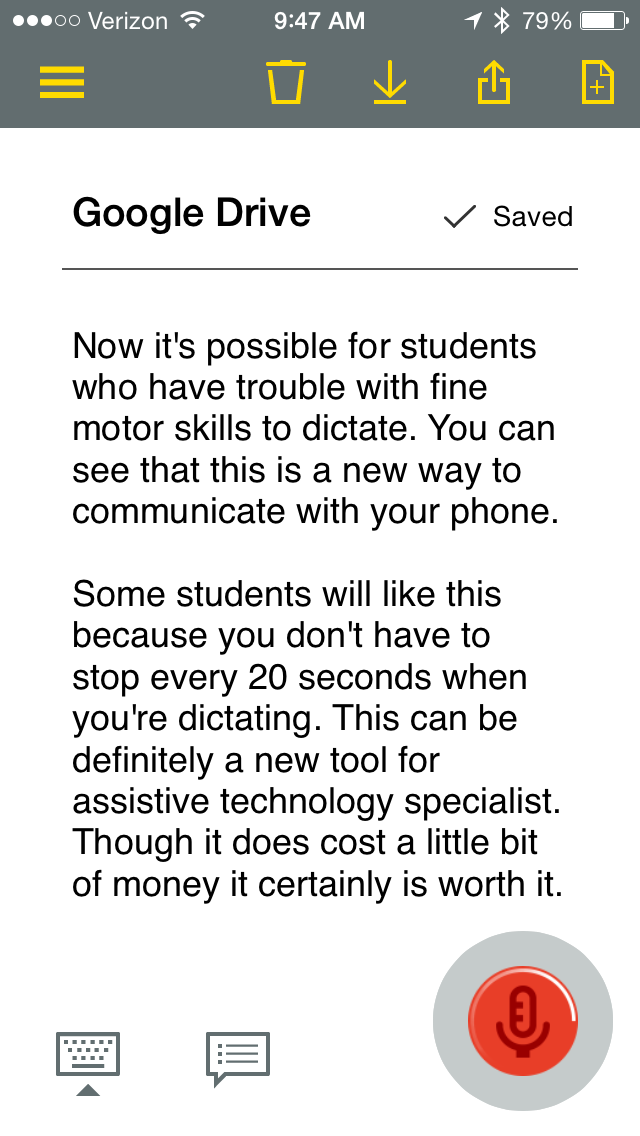
This past week Nuance the developers of Dragon NaturallySpeaking released a new app for Android and IOS called Dragon Anywhere. Dragon Anywhere is a mobile solution with hands-free use while doing speech recognition. Dragon Anywhere allows the student to dictate for as long as they need without having to tap on the microphone button on the keyboard. Dragon Anywhere allows the students to use voice commands to select text, export text and to move the cursor around the document totally hands-free. This power it has been unprecedented until the release of Dragon Anywhere. Once the student has done the dictation it's easy to export the text via email it or even place it in Drop Box.The one downside to Dragon Anywhere is that there is a monthly subscription fee of $15 to use the app. It really would be great if  Nuance had an educational pricing schedule for students to that schools could begin to pay for this service.

Certainly you can see a lot has changed over the last couple of years with regards to speech recognition- making it a much more viable alternative for students that have difficulty in the area of written language. With a little practice these tools can become an invaluable part of their assistive technology toolkit.

Thursday, July 23, 2015

Vernier Go Wireless Link: Creating New Opportunities for Mobile Data Collection

It certainly is exciting times to be involved in the field of educational technology and if your are a science teacher there is even more opportunities with your existing classroom technology to take advantage of using science probeware in your classroom. If you have been following my blog, you know how passionate I am about teachers using probeware in the classroom to give students the capability of collecting data in real time. This is an especially important tool if you are supporting students with special needs-in that these tools provide students with a way to see data represented in many different types of ways. Students can view the incoming data in a graph format, table and as a meter. 

In July, Vernier Software released the Vernier Go Wireless Link which opens up all kinds of opportunities for students collecting real time data with mobile devices. The Vernier Go Wireless Link is a very small data collection interface that allows you to plug in over 35
different Vernier sensors and begin to collect data wirelessly to your iPhone, iPad and iPod Touch. Later this summer, Vernier will also support Android devices and the LabQuest 2. The diminutive size of the  Vernier Go Wireless Link  makes it an ideal tool for collecting data in the classroom as well as when you are in the field. The  Vernier Go Wireless Link  uses Bluetooth LE and once turned on it will automatically connect to you device without the need to do any configuration. Simply charge the  Vernier Go Wireless Link with the USB cable provided and then you are ready to begin collecting data. 

Using the  Vernier Go Wireless Linkto collect real time data is a breeze. Simply turn on the Go Wirelss Link, connect a compatible sensor,
Right Hand Strength
launch Graphical Analysis, tap create experiment, choose Wireless Sensor, choose Go Wireless Link and begin your data collection. I have to say that using the 
 Vernier Go Wireless Link was very straight forward and easy to use. I connected the  Vernier Go Wireless Link  to a Hand Dynamometer and clicked on the Connect button to start my data collection. Within seconds the data was being graphed on the screen as I squeezed the sensor with my right hand. 

Using the  Vernier Go Wireless Link  gives students the opportunity to collect data quickly and accurately and because of the size of the interface they can easily use it in the field away from the iPad. The  Vernier Go Wireless Link  has a range of 30 m which would enable teachers and students to keep the device away from water or other hazards when collecting the data. 

So if you have existing compatible Vernier sensors and are looking for a great way to connect them to your IOS or Android devices look no further, the  Vernier Go Wireless Link  is the perfect interface for getting your students collecting data with mobile devices! 


Saturday, July 12, 2014

Belkin Portable Tablet Stage-Right for Any Tablet

It was great having a chance to visit with so many vendors while I attended ISTE 2014 Conference a couple of weeks ago. Walking through the Exhibitors Hall, I was struck by just how much "stuff" is out there that educators need to vet. As I walked the Exhibit Hall I came across some unique products that I know will finds its place into the classroom. One of favorite new products is from Belkin and it is the Portable Tablet Stage, a light weight and portable stand for your tablet that can turn it into a great presentation stage. When you pair up the Belkin Portable Tablet Stage with the free Belkin Stage app (Available in Apple App Store & Google Play) you have a wonderful tool for making the classroom come alive. I had reviewed the Belkin
Stage app earlier this year and it affords teachers a rich set of tools for turning an IOS or Android device into a great teaching tool. With your tablet set on the Belkin Portable Tablet Stage you can utilize your tablet's camera and turn it into a document camera which you can then annotate on top of. The Belkin Portable Tablet Stage  and accompanying Stage app takes your tablet to the interactive whiteboard arena at a fraction of the cost. You can add labels, audio, draw and interact with images right on your tablet using the Stage app. If you like you can record your sessions and email them to your students for later use. The Belkin Portable Tablet Stage is a portable solution for teachers who find that they are moving from classroom to classroom and need a platform to deliver their content. The Belkin Portable Tablet Stage folds up into a small package and should store easily in a backpack or briefcase. At around $99.99 dollars this is great value and one gadget that I'm know I will use in my classroom this fall. For more information about how to purchase this product contact me.

Monday, September 9, 2013

Co:Writer App for IOS- WOW!

I guess patience is a real virtue especially when it comes to developing apps for Apple's IOS devices. In the case of the Co:Writer App for IOS from Don Johnston, Inc, the wait was certainly worth it.  Co:Writer for Mac and PC has become to large degree the standard in the assistive technology field for word prediction. I can remember when I first saw Co:Writer for the first time I was floored just how good the prediction algorithms were. It had the uncanny ability to feel like it was reading my Co:Writer for IOS comes complete with a large library of built-in Topic Dictionaries, what happens when the student is writing for example a current events paper on the Civil War in Syria? Not a problem, Co:Writer for IOS can go out to the web and create a Scraped Topic Dictionary on the fly. Wow that is some powerful feature!
Co:Writer for iPad
mind as I demonstrated it on the computer. But what could we come to expect from Co:Writer on an IOS device? With a long history of being the standard by which all word prediction applications are measured could it really provide students with the level of support that they would need? I have to tell you that since its release a couple of weeks ago, Co:Writer lives up to its reputation and then some. I am really floored to watch Co:Writer run on the iPad as elegantly as it does never missing a beat. The word prediction is top rate even when students spell phonetically or leave out vowels. The killer feature as far as I am concerned are Topic Dictionaries and Scraped Topic Dictionaries. Those of us who have used Co:Writer are well aware of Topic Dictionaries that are included with Co:Writer on the Mac or PC and how well they can support students when they are writing a specific topic. Sometimes we forget what a difference it can make when a student is writing when we can provide theme with all those technical and topical words they will need to access. While 

As you would expect you can customize Co:Writer for IOS by determining the base number of words that Co:Writer should access which would depend on the students vocabulary and grade level. You can also set the Text to Speech feature to read letters, words, or sentences and set the rate of the speech. You currently can utilize five different fonts and change the size of the text and utilize a high contrast feature, black background white text. While Co:Writer makes it easy to get your ideas down on the iPad-it also gives you lots of options when it comes time for sharing your ideas. You can send the text to iMessage, Facebook, Twitter or Email. Better yet you can save it to your Dropbox or Google Drive account for easy access at home or in school. You can also copy. paste and print the text directly from the app. Don Johnston, Inc recently added iCloud support which will now sync your files across multiple devices which is a great feature. Co:Writer for IOS also supports external Bluetooth keyboards and will work on the iPhone. For students who need spelling support, having access to Co:Writer on IOS will be a dream come true for them.

To get a feel for Co:Writer for IOS please watch the screencast.


Thursday, January 17, 2013

CamNote is Launched for iOS & Android Smartphones

About two weeks ago, I was reading some blog posts on my Flipboard app when I came across a piece about a new app called CamNote for IOS and Android platforms which was just recently released. The blog was accompanied with a great video tour of the app which caught my attention. CamNote lets you have the best of both worlds-continue to hand write your notes on the CamNote A5 Journal or A7 Jotter as you have always done and then scan them in with your smartphone using the free CamNote app. The developer has done a fantastic job of developing an app that quickly and automatically recognizes the borders of the writing pads so that you can upload your notes to DropBox, Evernote, or Google Drive in one quick step. If you have ever tried to scan a document with your camera you will realize the benefits of using the CamNote system to archive and share your notes with others. The CamNote A5 Journal or A7 Jotter are well designed and the quality of the paper is fantastic and developed so that ink will not bleed through the page. Once you upload and tag your notes to Google Drive or Evernote you can take advantage of their OCR feature to search and find words in your uploaded notes. Organizing your hand written notes has never been so easy with the CamNote System. If you are interested in purchasing CamNote in the United States email me for the details. If you still enjoy using pen and paper to take your notes but want to take it to the next level, then you need to take a look at CamNote. The CamNote system is an ideal way to capture, archive and share your hand written notes with others- so give it a try!

Saturday, September 29, 2012

iOS 6 Brings the Highlight Words feature to the iPad

Apple has added a number of new Accessibility features in iOS 6 which makes the iPad even easier to use for students with reading disabilities. In the latest version of the iOS students can now turn on the Highlight Word feature which will highlight the words as they are being read on the screen. Being able to synchronize the highlighting of text on the screen is an invaluable feature and one that many students with reading and attentional difficulties will find to be extremely helpful. Remember that this feature is part of the iOS-so as long as you are able to select text on the screen it will work in most apps. This feature is also great as an editing tool for students when they are doing writing. I have embedded a short video demonstrating how to turn on this feature.