
 Ever since I've been involved in the field of assistive technology there's always been the hope that speech recognition could assist students with the writing process. While speech recognition has been effective for some of the students we work with, it hasn't always worked out for the majority of the students that we work with. In the last six months there's been some new developments that make speech recognition a reality for many students. For many of us that are using smart phones we find ourselves using speech recognition more and more on daily basis for text messaging and for writing emails. Now students can take advantage of speech recognition on mobile devices such as iPhone's, iPad, Android phones, Windows tablets as well with as within Google Docs. With the advent of machine learning the speech recognition engines keep getting better and better and do not require initial training. This has made it a very easy entry for students to trial speech recognition. Prior to this time, students would have to spend a considerable amount of time training and creating a profile. With the advent of mobile devices this is a thing of the past. Over the last six months I've been using a number of different speech workflows that I wanted to share with you.
 Google recently added Voice Typing to Google Docs which really has taken speech recognition to the next level. By simply plugging in a microphone to a desktop computer students can start to use speech recognition immediately. I have found that the speech recognition that's built into Google Docs to be very accurate and allows students to quickly get their ideas down. Voice Typing opens up all kinds of opportunities for students to quickly get their ideas down on the page. With the advent of this API other companies have been using and integrating the Voice Typing into their apps. You will now find Voice Typing integrated into Co:Writer Universal, WordQ, as well as Read and Write for Google Chrome. Having Voice Yyping integrated into these applications give students a new way to get their ideas down on the page. It's really exciting to work with students and watch them as the words fly onto the computer screen.
 With the advent of so many stews students using iPads and the new system IOS 9, SIRI has become a better contender in the area of speech recognition. Anytime student see the microphone at the bottom of the keyboard they can click and speak and the text gets immediately transcribed. Although it's not perfect it certainly is a very fast way to input text on the iPhone or iPad. SIRI is wonderful in that it works throughout the operating system giving students access to it from wherever application they are using. I am working with many students that are currently using SIRI instead of writing which has worked out really well.
Another interesting application that I came across is called myEcho and it's an app that you can install on your iPhone and takes advantage of the SIRI technology. This workflow is great if a student has an iPhone and is working on the Windows platform. The student can first purchase myEcho aoo for IOS for a $1.99 and then install the companion app on their Windows desktop, laptop or tablet. Once the iPhone and the computer had been

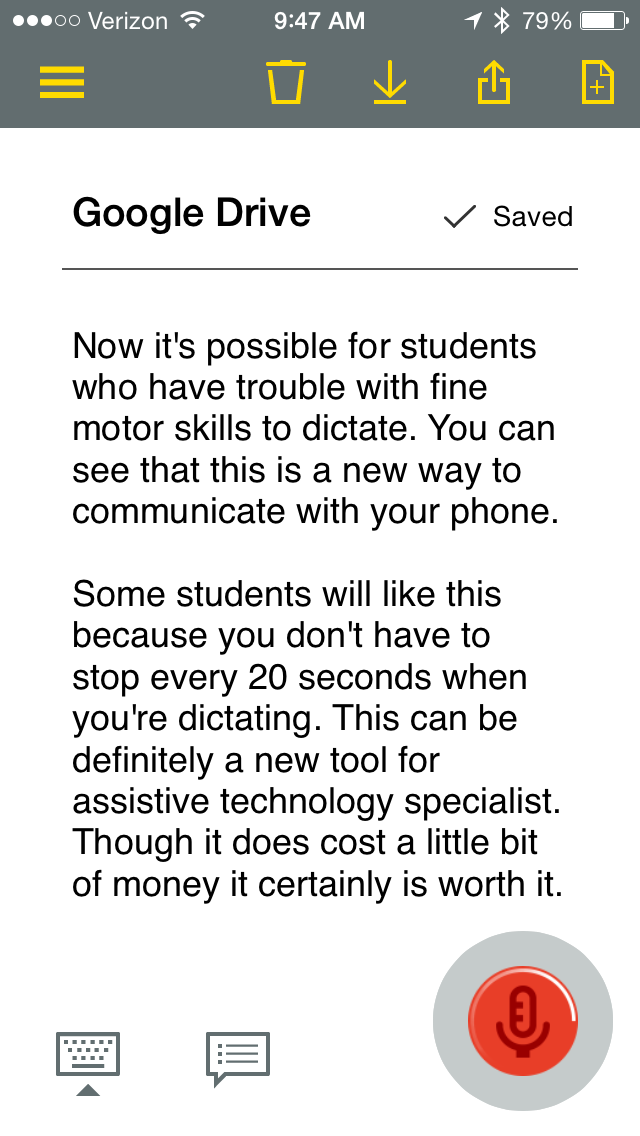 This past week Nuance the developers of Dragon NaturallySpeaking released a new app for Android and IOS called Dragon Anywhere. Dragon Anywhere is a mobile solution with hands-free use while doing speech recognition. Dragon Anywhere allows the student to dictate for as long as they need without having to tap on the microphone button on the keyboard. Dragon Anywhere allows the students to use voice commands to select text, export text and to move the cursor around the document totally hands-free. This power it has been unprecedented until the release of Dragon Anywhere. Once the student has done the dictation it's easy to export the text via email it or even place it in Drop Box.The one downside to Dragon Anywhere is that there is a monthly subscription fee of $15 to use the app. It really would be great if Nuance had an educational pricing schedule for students to that schools could begin to pay for this service.
Certainly you can see a lot has changed over the last couple of years with regards to speech recognition- making it a much more viable alternative for students that have difficulty in the area of written language. With a little practice these tools can become an invaluable part of their assistive technology toolkit.


