Showing posts with label Google Docs. Show all posts

Sunday, January 24, 2016

Review of Dell Chromebook 13-Sleek & Smooth

As more schools jump on the Chromebook wagon it is is exciting to see companies like Dell step up to the plate and deliver high quality devices for schools. For many of us who have been using Chromebooks for some time now- I always found the first generation devices


were rather under-powered and lagged in performance. But this is changing rapidly with new Chromebooks that are sporting Intel processors. With Dell's release of the Dell Chromebook 13 the tides are changing and now educators and students can have access to devices that house much faster silicone. The Dell Chromebook that was provided for me for this review, the Dell Chromebook 13 sported an Intel i3 processor with 4 GB or RAM and 16 GB Solid State Drive with a 13.3 inch FHD Display and is priced at $529 on the Dell website. The Dell Chromebook 13 is made of carbon fiber finish with magnesium alloy that is easy to grip and gives the computer good protection from dings and bangs.  The Dell Chromebook 13 comes standard with 1x USB 3.0, 1x USB 2.0, HDMI 1.4, MicroSD slot Noble lock slot and a Stereo headphone and microphone combo jack and weighs in at 3.2 pounds. The keys are Chiclet style with back lighting and feel really good when typing. Most users will find the precision Touchpad with built-in glass integrated button extremely easy to use and will not find a need to carry a mouse. The Dell Chromebook 13 supports Bluetooth 4.0 LE, making easy to connect your computer to external devices that support the latest Bluetooth standard for Low Energy. Pairing one of my Logitech Bluetooth mice took just seconds and was very easy to accomplish. The Dell Chromebook 13 comes with Dell's 720p webcam which is pretty standard across most of the Chromebooks which should work well with Google Hangouts or Skype.


Using the Dell Chromebook 13 you will find that its boot time is extremely fast and in a matter of a few seconds you will be logged in and ready to go. One of the really great features of the Dell Chromebook 13 is its battery life. With a 67Whr - 6 cell battery you should easily get 10-11 hours of battery life to keep you going all day long. The LCD screen provides you with a crisp view of your text documents and HD videos look great on the screen. One of my favorite features of the Dell Chromebook 13 is having an Intel i3 processor inside. You definitely feel the difference when working on this computer and having the processing speed of this mainstream chip really makes this a pleasurable experience. Whether you are just using Google Docs or opening up an app you will find the experience to quick and very smooth. Having worked on less powerful Chromebooks,  the experience of using the Dell Chromebook 13  was very positive and a device I would highly recommend to educators to look at. If you are looking for a top of the line Chromebook, then you need to take a look at the Dell Chromebook 13, it has a lot to offer in its quality built, design and horsepower. While the Dell Chromebook 13 may come in a little more in terms of its price ($529),  if this is your go to everyday computer it is worth the extra dollars to have such a high quality computer that you can count on to give you a great user experience! For educators who may be working with students who need to use a touch enabled screen, Dell does make a make a Dell Chromebook 13 model with with a touch screen.

Thursday, December 17, 2015

Speech Recognition - Coming of Age!

Ever since I've been involved in the field of assistive technology there's always been the hope that speech recognition could assist students with the writing process. While speech recognition has been effective for some of the students we work with, it hasn't always worked out for the majority of the students that we work with. In the last six months there's been some new developments that make speech recognition a reality for many students. For many of us that are using smart phones we find ourselves using speech recognition more and more on daily basis for text messaging and for writing emails. Now students can take advantage of speech recognition on mobile devices such as iPhone's, iPad, Android phones, Windows tablets as well with as within Google Docs. With the advent of machine learning the speech recognition engines keep getting better and better and do not require initial training. This has made it a very easy entry for students to trial speech recognition. Prior to this time, students would have to spend a considerable amount of time training and creating a profile. With the advent of mobile devices this is a thing of the past. Over the last six months I've been using a number of different speech workflows that I wanted to share with you.

Google recently added Voice Typing to Google Docs which really has taken speech recognition to the next level. By simply plugging in a microphone to a desktop computer students can start to use speech recognition immediately. I have found that the speech recognition that's built into Google Docs to be very accurate and allows students to quickly get their ideas down. Voice Typing opens up all kinds of opportunities for students to quickly get their ideas down on the page. With the advent of this API other companies have been using and integrating the Voice Typing into their apps. You will now find Voice Typing integrated into Co:Writer Universal, WordQ, as well as Read and Write for Google Chrome. Having Voice Yyping integrated into these applications give students a new way to get their ideas down on the page. It's really exciting to work with students and watch them as the words fly onto the computer screen. 

With the advent of so many stews students using iPads and the new system IOS 9, SIRI has become a better contender in the area of speech recognition. Anytime student see the microphone at the bottom of the keyboard they can click and speak and the text gets immediately transcribed. Although it's not perfect it certainly is a very fast way to input text on the iPhone or  iPad. SIRI is wonderful in that it works throughout the operating system giving students access to it from wherever application they are using. I am working with many students that are currently using SIRI instead of writing which has worked out really well.

Another interesting application that I came across is called myEcho and it's an app that you can install on your iPhone and takes advantage of the SIRI technology. This workflow is great if a student has an iPhone and is working on the Windows platform. The student can first purchase myEcho aoo for IOS for a $1.99 and then install the companion app on their Windows desktop, laptop or tablet. Once the iPhone and the computer had been
paired up, the students simply brings up the myEcho app- clicks on the microphone and begins to dictate. When when you click on the done button the text automatically gets sent to whatever application is open. This would allow a student to use speech recognition using their iPhone as the input mechanism and would allow them to type text directly into an application like Microsoft Word or any application that can accept text. Just like SIRI there is about a 15 second limit but you can continue to add text to your document by clicking on the microphone button. This application is not limited to one computer which would enable a student to  have the myEcho companion installed on his many computers as they have access to. This is a great solution for students that have an iPhone but are still using a Windows computer at school or at home for productivity

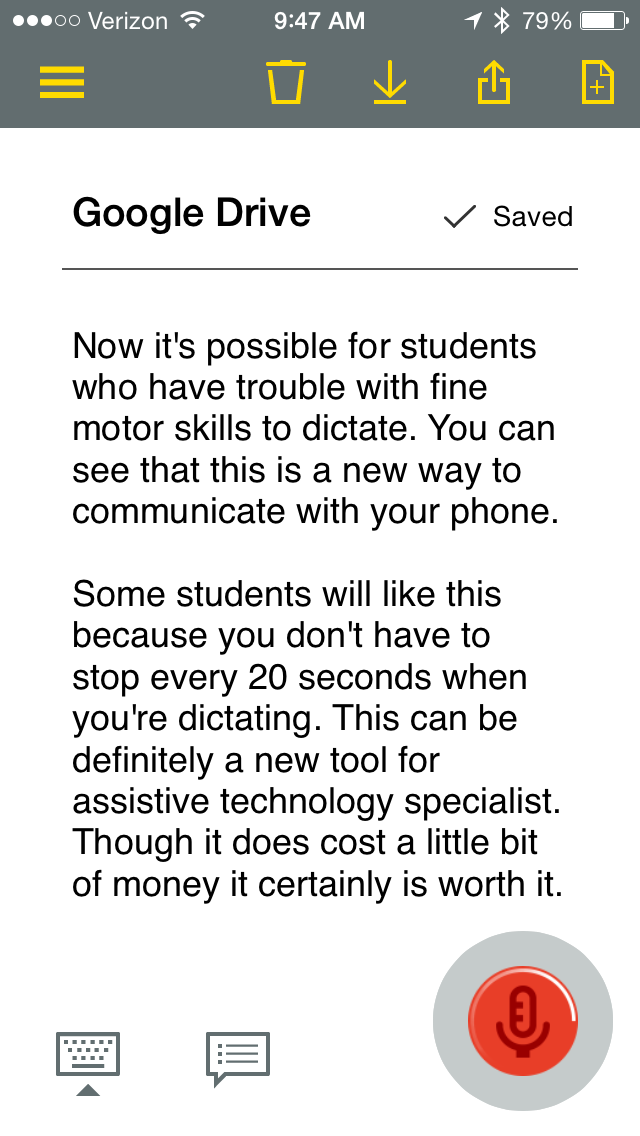
This past week Nuance the developers of Dragon NaturallySpeaking released a new app for Android and IOS called Dragon Anywhere. Dragon Anywhere is a mobile solution with hands-free use while doing speech recognition. Dragon Anywhere allows the student to dictate for as long as they need without having to tap on the microphone button on the keyboard. Dragon Anywhere allows the students to use voice commands to select text, export text and to move the cursor around the document totally hands-free. This power it has been unprecedented until the release of Dragon Anywhere. Once the student has done the dictation it's easy to export the text via email it or even place it in Drop Box.The one downside to Dragon Anywhere is that there is a monthly subscription fee of $15 to use the app. It really would be great if  Nuance had an educational pricing schedule for students to that schools could begin to pay for this service.

Certainly you can see a lot has changed over the last couple of years with regards to speech recognition- making it a much more viable alternative for students that have difficulty in the area of written language. With a little practice these tools can become an invaluable part of their assistive technology toolkit.

Tuesday, May 27, 2008

Google Docs Adds Fixed-Width Page View

  No comments    
categories: ,
Google just this past week added a fixed-width page view to GoogleDocs which is sure to make everyone a lot happier about using the word processor for preparing documents. With the fixed-width page view selected from the View menu you can now get to view the document at 100% and know where the page breaks and how your document will print. You can always go back to the normal plain view if you would like- but why bother. With the fixed-width page view you can now get a good perspective on your word processing document and how it will look when printed.

Monday, May 5, 2008

Google Docs- Embedding Multi-Size Presentations

  No comments    
categories: ,
It is exciting to see Google Doc's evolve with new features being added all of the time. Google Doc's just added the capability of embedding multi-size presentations into your blog or website. You can also now do a multiple selection of different objects on you screen by holding down the Shift key. Check it out

Friday, April 11, 2008

Posting to Your Blog from Google Docs

  No comments    
categories: ,
The more I explore Google Docs the more I find hidden features that continue to make things that much easier to do. Today I was looking at the Share tab and learned that it is possible to post your Google document directly to your blog by first selecting Publish as web page... After you have selected that option you will then be able to post your Google document to your blog. You may need to configure Google Docs and supply it with your blog address and password. You can even test the connection to see if it will work. As a test I am going to post this to my Blogger account from Google Docs. Let's see what happens.

Wednesday, April 9, 2008

Google Presentation Adds Export to PowerPoint

Google announced just yesterday that it is now possible to export your Google presentations to PowerPoint format. Now you can design your presentations in Google Presentation and you are able to save it in a PowerPoint format. Pretty cool!

Wednesday, March 26, 2008

Google Docs adds New Feature

  No comments    
categories: , ,
I read on the Google Doc's blog that many users were not happy with tabbed arrangement of toolbars and so with the latest version of Google Doc's you will find the traditional drop down menu structure. The dropdown menus (see screenshot) are strikingly similar to how one would interact with a desktop word processing application such as Word 2003. You will find the new version of Google Docs easier to use and the dropdown menus are very responsive to mouse clicks.

Thursday, February 7, 2008

Google Docs Adds Forms

Over the last couple of months I have begun to rely more and more on Google Docs for collaborating and sharing documents, spreadsheets, and presentations. As I noted a couple of weeks ago Google continues to develop and add incredible features to this platform. Just yesterday I learned that Google has added the ability to create Forms from within the Spreadsheet application. I tried it last night and found it very easy to use. It is now possible with this feature to collect data from a group of people and then analyze and collect it within Google Spreadsheet. It is a great way to do a simple survey and share with people in your group. Just go to Google Docs and select New Spreadsheet-then click on Share and Select To fill out Form and then click on Start editing your form. From there follow the steps to create your form. Once you have created the form you can invite others to it. Once your collaborators have submitted their forms, the data automatically is published to your spreadsheet.

Saturday, January 26, 2008

Google Updates Presentation

Google quietly added two new features to Google Presentation recently which I wanted to share with you. Now it became easier to share your presentations by allowing you to export your presentations to PDF. This is a good stop gap measure until we get the ability to export our Google Presentations to PowerPoint format (ppt). Google Presentation has also added the ability to add vector based shapes to your presentation. You can now add speech balloons and arrows to your presentations to bring attention to your points. Take a look at the presentation below.