
As the iPad begins to transform the face of education- we will shortly begin to see it take hold of another facet of learning in the classroom - notably the interactive whiteboard. I can remember like it was just yesterday the excitement of working on a SMART Board for the very first time. It transformed the classroom and gave both teachers a portal to the internet that they could share with their students with such ease. While interactive whiteboards of all varieties are much more common in today's classrooms across America they never really changed the dynamic of the classroom with the teacher standing in the front of the classroom directing the lesson. Yes- I know that students do come up to the interactive whiteboard on occasion to interact with the board but for the majority of students, they sit idly at their desks waiting for a turn. This is all about to change as the iPad infiltrates this next arena of the classroom notably the interactive whiteboard.
 About two weeks ago I had a briefing with Jon Roepke, Belkin Senior Product Manager, Education who had a chance to share with me some of the new offerings from Belkin in the K-12 marketplace. I was excited to learn about the Belkin Tablet Stage and the accompanying Belkin Stage App that would be released in March 2013. The Belkin Tablet Stage transforms the iPad into a document and presentation system which looks to rival some of the standalone systems that are currently be used in the classroom. The Belkin Tablet Stage is compatible with tablets that are 7" to 11" and has an adjustable platform with cable management allowing you to adjust the iPad as you see fit. The Belkin Tablet Stage contains adjustable LED lights and has a document camera mode to captures images and live video. The accompanying Belkin Stage App which is free, compliments the system and lets teachers annotate on top of the live video feed. With the latest edition of the Belkin Stage App, teachers can pay $1.99 which allows them to record and save live video feeds to their Camera Roll. Teachers will find using the Belkin Stage App easy and intuitive to use, providing teachers with a good set of annotation tools. Teachers can draw on top of any image or video feed using various colored markers or use the Label Tool to bring text flags into the stage. If you opt to buy the video record feature you can record your annotations and audio and save it to the camera Roll and share it out which is a great feature. Utilizing the Belkin Stage app will enable teachers to move around the classroom and use the iPad as if it were a graphics tablet. Anything written on the app will be immediately projected to the screen. Students could easily take hold of the iPad and share their ideas and thoughts or small groups of students could be working together and sharing their group work. Giving teachers the flexibility to move about the classroom with the iPad projecting the image will be the next wave and utilizing Apple's Airplay technology is pretty straightforward. Many classroom are installing Apple TV's to accomplish this while other may choose a software solution like the Reflector App which routes the video and audio through a Mac or PC that is on the same wireless network.
I am really excited by this product because it will enable teachers and students to scan and capture high quality worksheets and text book pages which can then be utilized by other programs. Working with lots of students with fine motor disabilities it is possible to scan their documents and annotate on top of them- but one of the weak links is getting a good quality scan which is sometimes hard when you have to hold the iPad still for a period of time. Having access to the Belkin Tablet Stage will enable students to capture high quality images which can then be annotated on using a variety of scanning apps. Similarly we will begin to see higher quality Optical Character Recognition (OCR) apps which will enable students to scan the text directly into their iPad and have it read aloud. Pretty amazing developments!

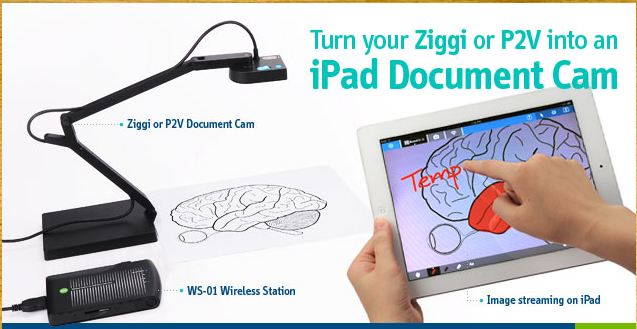
In the same vein, I had a chance to sit down with Alex from IPEVO to get an update on some of their new product offerings for the classroom which should be imminent. It was exciting to hear about all of the new releases which as you can imagine, revolved around the iPad. Alex brought with him the Wireless Station for iPad and USB Document Cam and demonstrated how using their Point 2 View (P2V) Document camera that one could wirelessly send a live video feed from under the camera to the iPad in real time. The set up was very easy as the Wireless Station for iPad sets up an ad-hoc wireless network that communicates to the iPad. One has to simply plug in the P2V Camera into the Wireless Station and then in the iPad's Network Settings select the Wireless Station WIFI network. Once you open the IPEVO Whiteboard app you can click on the Wireless Device icon to select the device and you are ready to use the camera. If you want to use the Internet while connected to the Wireless Station you can route the Internet via WIFI connecting through the Wireless Station making it easy to use both the camera and Internet at the same time. Utilizing their recently released free IPEVO Whiteboard app it was possible to annotate directly on the video using any of a number of different markup tools which includ: free from markers, arrows, boxes, circles, text, lines and arrows. The software was easy to use and a teacher could capture what was on the iPad screen to the Camera Roll or send it to Evernote for later use. The IPEVO Whiteboard app gives teachers the freedom to bring in pictures from their Camera Roll or create a new board using a Plain White background for writing on. While teachers can certainly use their fingers to write with it, is easier when using this app to use a stylus. IPEVO's telescoping Stylus fits the bill and give you the option to elongate it if you need to do so when using the iPad. Teachers can use the Point 2 View or Ziggi USB camera with the Wireless Station and the soon to be released Ziggi-HD camera. Teachers can create sessions with multiple boards while using the IPEVO Whiteboard app and switch between them quickly.
It is clear to me that the we are beginning to see a new trend in using the iPad as an interactive presentation system in the classroom which will begin to take hold for the start of the next school year. The interplay of Apple's Airplay technology coupled with these low cost solutions will define a new market for interactive technologies in the classroom; benefiting both teachers and students in the learning process.
I am really excited by this product because it will enable teachers and students to scan and capture high quality worksheets and text book pages which can then be utilized by other programs. Working with lots of students with fine motor disabilities it is possible to scan their documents and annotate on top of them- but one of the weak links is getting a good quality scan which is sometimes hard when you have to hold the iPad still for a period of time. Having access to the Belkin Tablet Stage will enable students to capture high quality images which can then be annotated on using a variety of scanning apps. Similarly we will begin to see higher quality Optical Character Recognition (OCR) apps which will enable students to scan the text directly into their iPad and have it read aloud. Pretty amazing developments!
 |
| IPEVO Whiteboard Screenshot with Annotation |
It is clear to me that the we are beginning to see a new trend in using the iPad as an interactive presentation system in the classroom which will begin to take hold for the start of the next school year. The interplay of Apple's Airplay technology coupled with these low cost solutions will define a new market for interactive technologies in the classroom; benefiting both teachers and students in the learning process.


.PNG)
.PNG)


